Notebook Environments
Explorations open notebook environments so you can run Python notebooks, keep files with the workspace, and document research decisions in one place.
Last updated: June 26, 2026
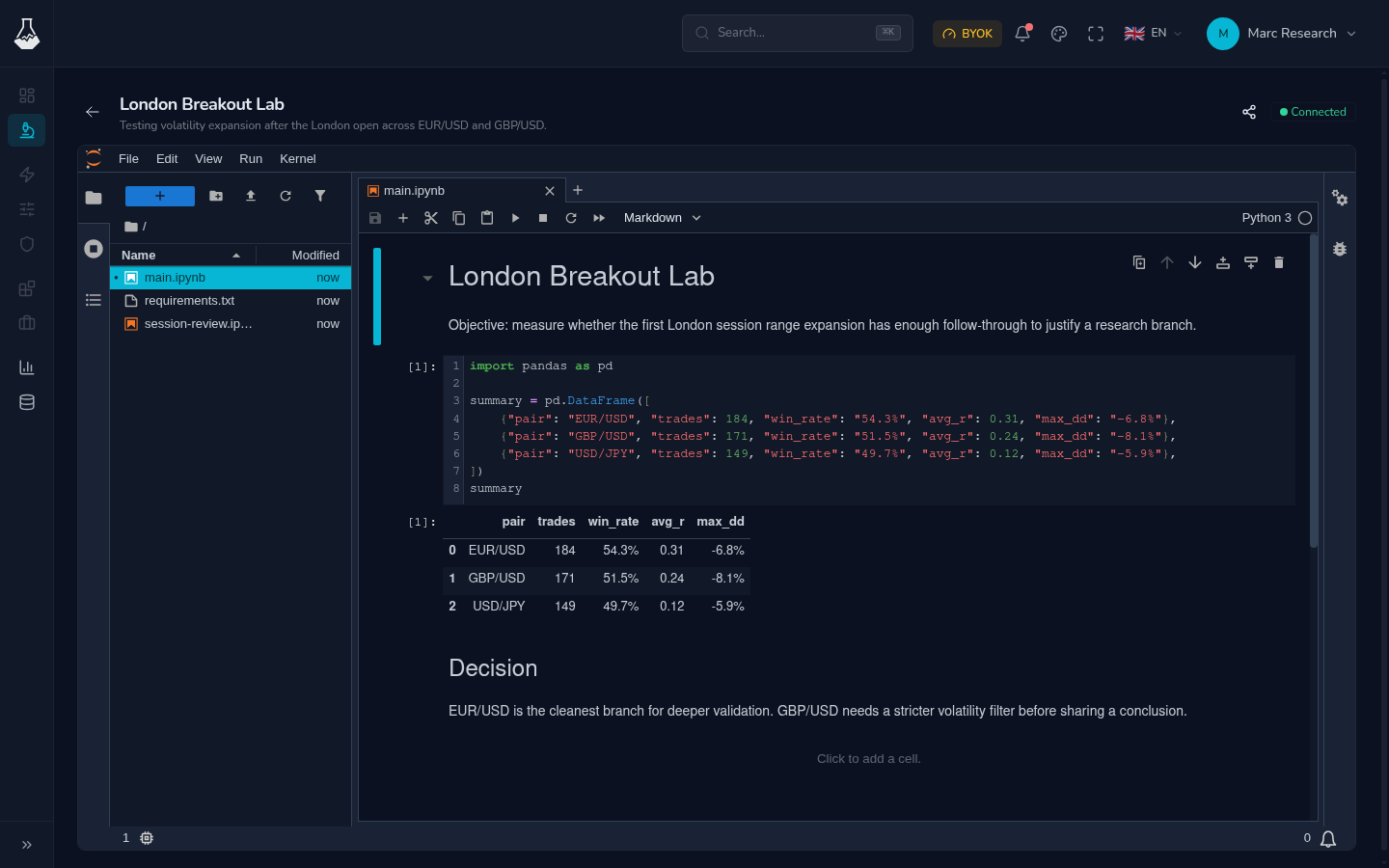
Use a notebook environment when you need interactive research: load data, run calculations, inspect charts, compare results, and save the reasoning next to the code.
Start a Notebook Session
- Open an exploration.
- Start the notebook workspace if it is not already available.
- Wait for the notebook UI to finish loading.
- Open
main.ipynbor create another notebook. - Run cells, save your work, and stop the session when you are done.
Cold starts can take a little time. Wait for the notebook interface and the Python kernel before assuming something failed.
Starter Files
New explorations include two important starter files:
| File | Purpose |
|---|---|
main.ipynb |
A starting notebook for the hypothesis, code, outputs, and notes. |
requirements.txt |
Packages that should be installed automatically when the notebook session starts. |
Keep the main notebook readable enough that you can understand the work weeks later: what you tested, what data you used, what changed, and what you decided.
Install Python Packages
There are two ways to install packages, depending on whether the package should stay part of the exploration.
| Need | What to do |
|---|---|
| Use the package every time this exploration starts | Add it to requirements.txt, save the file, then restart the notebook session. |
| Try a package quickly | Run %pip install package-name in a notebook cell. |
Packages installed with %pip are useful for experiments, but they are not the best place to record long-term dependencies. If the package matters to the research, add it to requirements.txt after the experiment works.
If an import still fails after editing requirements.txt, restart the Python kernel or restart the notebook session so the new packages are loaded cleanly.
Save and Structure Work
| Practice | Why it matters |
|---|---|
| Save before closing the tab | Prevents losing recent notebook edits. |
| Use markdown cells | Makes results understandable without rerunning every cell. |
| Keep scratch work separate | Makes reviewed notebooks easier to share. |
| Name output files clearly | Helps you find exports and charts later. |
| Remove secrets from notebooks | Public shares can include notebook text and outputs. |
Plan Limits
Running notebook sessions can count against your plan limits. If TheoryCraft says another session must be stopped first, open Usage to review what is active.
Stop sessions you are not using, especially after long research runs or when you switch to another exploration.
Troubleshooting
| Symptom | What to try |
|---|---|
| Notebook UI keeps loading | Wait briefly, then reload the exploration. |
| Python kernel is disconnected | Restart the kernel from the notebook UI. |
| Import fails | Check spelling, install with %pip, or add the package to requirements.txt and restart. |
| Plan limit reached | Stop another active notebook session or adjust your plan. |
| Assistant does not see a recent edit | Save the notebook, then ask the assistant again. |
FAQ
Are notebook files permanent?
The files attached to the exploration persist. The running notebook session itself can stop and be started again later.
Can I share a running notebook?
Shares are read-only snapshots. Save the notebook first, then use Share Explorations to create a public link.
Can an external assistant work with notebooks?
Yes. Use Developer settings and Connect an External Assistant when you want an MCP-compatible client to access your TheoryCraft workspace.